
Having a single, well-prepared screenshot of your essential emergency info can truly save you when cell service drops. Make sure it includes your location, emergency contacts, and crucial instructions. Store and organize this screenshot on your device for quick offline access during stressful moments. Keep it updated, organized, and easy to find, so you can confidently rely on it if needed. Want to learn how to maximize its usefulness? Keep going.
Key Takeaways
- Save a screenshot of your emergency contacts, including local authorities and family, for quick access offline.
- Capture your GPS coordinates in a screenshot to assist rescue teams when cell service is unavailable.
- Take a screenshot of critical medical information, allergies, or special instructions for emergency reference.
- Organize and back up these screenshots securely on your device or cloud for easy retrieval during emergencies.
- Regularly update and verify your emergency screenshots to ensure accuracy when cell service drops.
Why Saving a Critical Screenshot Can Save Your Life When Cell Service Drops

When your cell service suddenly drops, having a crucial screenshot saved can be a lifesaver. In remote areas, satellite communication often becomes your only link to help. A well-captured screenshot of emergency contact info, GPS coordinates, or essential instructions ensures you have quick access even when signals are weak or lost. Emergency apps can utilize these images to assist responders or guide you through tricky situations. Saving key information as a screenshot means you won’t have to rely solely on live data or internet access, which may be unavailable. Understanding contrast ratio can help you better assess the clarity of your saved images, ensuring they are legible in critical moments. This simple step can streamline rescue efforts, provide reassurance, and help you communicate vital details quickly. Be proactive—capture critical information now, so it’s at your fingertips when you need it most.
What Information You Should Save Before Heading Into Remote Areas

Before heading into remote areas, it’s crucial to prepare your device with key information that can assist you if emergencies arise. Save your emergency contacts, including local authorities, family, and friends, in your phone or offline storage. Also, note down your location coordinates—latitude and longitude—so rescuers can find you more easily. Consider creating a quick-access document or screenshot with this important info, especially if your phone doesn’t have reliable service. Having these details readily available ensures you can share your location or contact help even when your device can’t connect to the internet. Preparing this information in advance can make a critical difference, providing clarity and speed during stressful situations. Understanding the importance of accurate location data can enhance your safety in unpredictable situations.
How to Snap and Save Screenshots on Your Phone and Other Devices
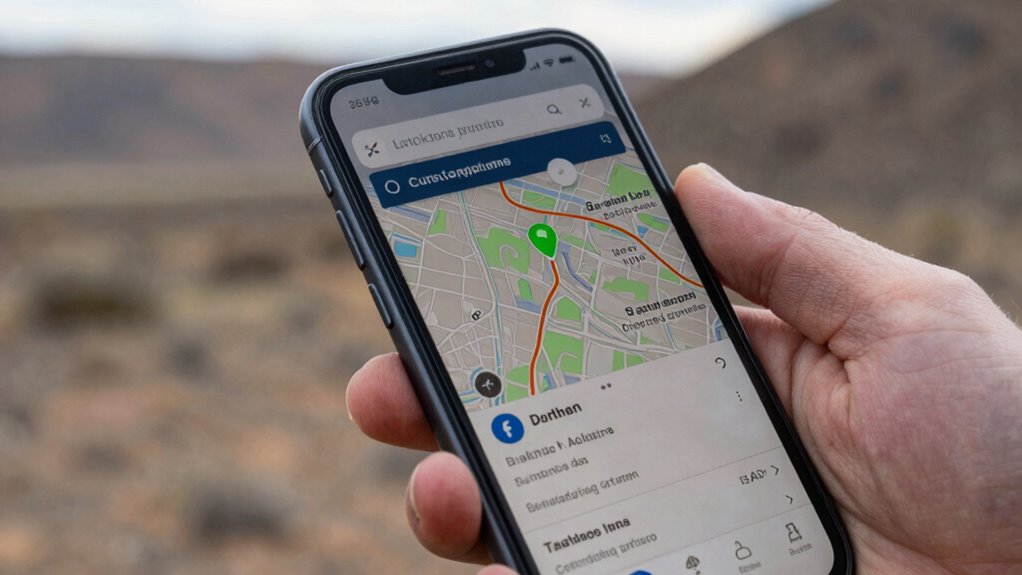
Learning quick methods to take screenshots on your devices can save you time when you need information fast. Organizing your captures guarantees you can find them later without hassle. Mastering these simple steps makes preserving important moments easy, even when cell service drops. Understanding digital publication principles helps you navigate and utilize your screenshots effectively.
Quick Screenshot Methods
Taking quick screenshots is essential for capturing important information on your devices, and fortunately, most smartphones and tablets make it simple to do so. With just a few taps, you can save critical data or moments for later. Here are four fast methods to take screenshots:
- Button Combination: Press power + volume down simultaneously.
- Gesture Controls: Use swipe or palm swipe features (if supported).
- Quick Settings: Tap the screenshot icon in your quick access menu.
- Screen Recording: Record your screen for a dynamic capture, then edit with photo editing tools if needed.
- Cloud Integration: Many devices automatically back up your screenshots to European Cloud Servers, ensuring your captures are stored securely and accessible across devices.
These methods help you save images quickly, especially when you need to capture something on the spot. Remember, mastering these shortcuts ensures you never miss important details, even when cell service is down.
Organize Your Captures
Organizing your screenshots guarantees you can find and use them efficiently when needed. Start by creating folders based on categories or projects, making it easier to locate specific images later. Regularly back up your screenshots to cloud storage services like Google Drive, iCloud, or Dropbox to prevent loss if your device malfunctions. Use descriptive filenames or tags to identify important captures quickly. Delete duplicates and irrelevant images to keep your storage tidy. Setting up automatic photo backups ensures your screenshots are safe and accessible across devices. Proper organization can also help you distinguish between important and trivial captures, saving you time in the long run. Consistent organization reduces frustration and saves time when you need a specific screenshot in an emergency. With a clear system, you’ll always know where your critical captures are, even if your device’s storage gets overwhelmed or your cell service drops.
Tips for Organizing and Storing Emergency Screenshots for Quick Access
To make certain you can access critical emergency screenshots quickly when cell service fails, it’s essential to develop a systematic approach for organizing and storing them. Start by creating a dedicated folder on your device and label it clearly—this keeps important images front and center. Next, make digital backups on cloud services or external drives, so you’re protected if your device is lost or damaged. Consider printing physical copies of the most vital screenshots, so you have a tangible backup when screens go dark. Ensuring your sound setup is optimized can also help you better interpret visual cues during live events. Here are some tips:
- Keep all emergency screenshots in one organized folder.
- Regularly update digital backups for security.
- Store physical copies in a safe, accessible place.
- Review and refresh your collection periodically to ensure relevance.
When and How to Use Your Saved Screenshot During an Emergency

Knowing when to use your saved screenshot can be crucial during an emergency, especially when real-time information or verification is needed quickly. If your cell service drops, your screenshot of emergency contacts ensures you can still reach help without delay. For added security, consider storing important details securely within your device’s notes or cloud backup. For example, you can show it to a responder or another person nearby to confirm who to contact or share critical details. Additionally, your map locations screenshot helps you navigate or find nearby landmarks if GPS is unavailable. Use the screenshot immediately when you’re in a situation where communication is cut off or directions are unclear. Keep it accessible and ready. This quick reference can make the difference between getting help promptly or getting lost, so rely on it when every second counts.
Understanding the Limitations of Screenshots and Other Backup Strategies
While screenshots can be a quick way to save critical information, they have notable limitations you need to recognize. First, screenshots rely on digital storage, which can be lost if your device crashes or is damaged. Second, they’re not always all-encompassing—missing context or details might make them less useful. Third, backup tools like cloud services depend on internet access, which may be unavailable during emergencies. Fourth, screenshots often lack organization, making it hard to find what you need quickly later. Relying solely on screenshots can give you a false sense of security. To truly safeguard important info, combine screenshots with robust backup strategies that include secure digital storage and reliable backup tools. Additionally, understanding the limitations of screens helps you develop a more effective backup plan. Don’t depend on just one method; diversify your backup plan.
How to Access Your Saved Screenshots Without Cell Service
Even without cell service, you can still access your saved screenshots by using offline methods on your device. Most smartphones automatically save screenshots locally, allowing you to open them directly through your device’s gallery or file manager. No internet connection is needed for this offline access, guaranteeing you can view important information anytime. To enhance data security, avoid syncing sensitive screenshots to cloud services unless you’re on a secure network. Organize your screenshots into specific folders for quick retrieval and peace of mind. If your device has a search function, use keywords or filters to locate your saved images faster. Additionally, understanding your device’s local storage options can help you manage your files more effectively. By understanding how to access these files offline, you guarantee your vital information remains available and protected, even when cell service is unavailable.
Why Regularly Updating Your Emergency Screenshots Keeps Your Info Reliable

Regularly updating your emergency screenshots guarantees the information you rely on is accurate and current. By verifying details and capturing the latest data, you prevent outdated info from causing confusion. Replacing old screenshots keeps your emergency resources trustworthy when you need them most. Incorporating connected fitness technology into your routines can also ensure your health data remains up-to-date and reliable during emergencies.
Verify Info Regularly
Updating your emergency screenshots frequently guarantees the information stays accurate and useful when you need it most. Regular checks ensure your emergency contacts are current, and location sharing details are precise. To keep your info dependable:
- Confirm emergency contacts are still reachable and correct.
- Update location sharing settings to reflect your current whereabouts.
- Verify any medical info or allergies listed are up-to-date.
- Review any instructions or notes that could be be time-sensitive or change often.
Capture Latest Data
Have you ever needed vital information during an emergency only to find your screenshots outdated or incomplete? Regularly capturing the latest data is essential for effective emergency preparedness. By updating your screenshots often, you ensure your digital documentation reflects the most current details, such as contact info, emergency procedures, or shelter locations. This practice prevents relying on outdated info when it matters most. Keeping your screenshots current means you won’t waste precious time searching for updated data or second-guessing its accuracy. It’s a simple yet powerful step to make your emergency plan more reliable. Consistently updating your digital documentation ensures that, even if your connection drops, you have access to accurate, relevant information at your fingertips. This proactive approach keeps your response swift and effective when every second counts.
Replace Outdated Screenshots
Keeping your emergency information current means replacing outdated screenshots promptly. If your screenshots show old emergency contacts or navigation routes, you risk misguiding responders or wasting critical time. Regular updates ensure your info remains reliable when you need it most.
To stay prepared:
- Review your screenshots monthly to confirm emergency contacts are correct.
- Update navigation skills screenshots to reflect recent routes or closures.
- Replace any outdated info that could cause confusion.
- Test your screenshots periodically to ensure they load correctly and are accessible offline.
Frequently Asked Questions
Can I Save Screenshots on iCloud or Google Drive for Offline Access?
Yes, you can save screenshots on cloud storage like iCloud or Google Drive for offline access. To do this, upload your screenshots to your preferred service, then enable offline access in the app settings. This way, you can view your screenshots anytime, even without internet. Make sure you select the offline sync option, so your images are stored locally on your device and accessible whenever you need them.
How Secure Is My Emergency Screenshot From Unauthorized Access?
Your emergency screenshot’s security depends on the encryption methods used by your storage provider. If stored on iCloud or Google Drive, your data is protected with strong encryption, but privacy concerns remain if these companies face breaches or government requests. To maximize security, enable two-factor authentication, use strong passwords, and consider local storage options. Remember, no system is completely foolproof, so always weigh convenience against potential privacy risks.
Are There Specific Apps That Automatically Update Critical Screenshots?
Yes, there are apps that automatically update essential screenshots, guaranteeing you’re always prepared. Automatic screenshot apps like Screenshot Automator or Tasker can capture and update emergency screenshot alerts in real-time. These tools automate the process, saving you time and stress during crises. By setting them up, you guarantee crucial info is always at your fingertips, ready to share when cell service drops or emergencies strike.
What Should I Do if My Device’s Screenshot Function Isn’t Working?
If your device’s screenshot function isn’t working, start with device troubleshooting by restarting your device or checking for software updates. If that doesn’t help, try an alternative capture method, like using a screen recording app or third-party screenshot tools. You can also take a photo of your screen as a quick workaround. These steps guarantee you can still save important info even if the standard screenshot feature fails.
Can I Print or Share My Emergency Screenshot Easily in an Actual Crisis?
Imagine your emergency screenshot is like a lifeboat, ready when cell service fails. You can easily share it via email or messaging apps if you have a digital backup saved. To print or share in a crisis, keep a printed copy or save it to cloud storage for quick access. This way, your vital info is always accessible, no matter the emergency, ensuring you stay prepared.
Conclusion
So, next time you’re lost in the wild with no bars, remember that one saved screenshot. It might be the only thing standing between you and chaos — a tiny digital lifeline in a sea of silence. Ironically, in a world obsessed with constant connection, it’s that simple image tucked away that could save your life. Keep it updated, organized, and ready — because sometimes, the smallest safeguard is your biggest hope.