
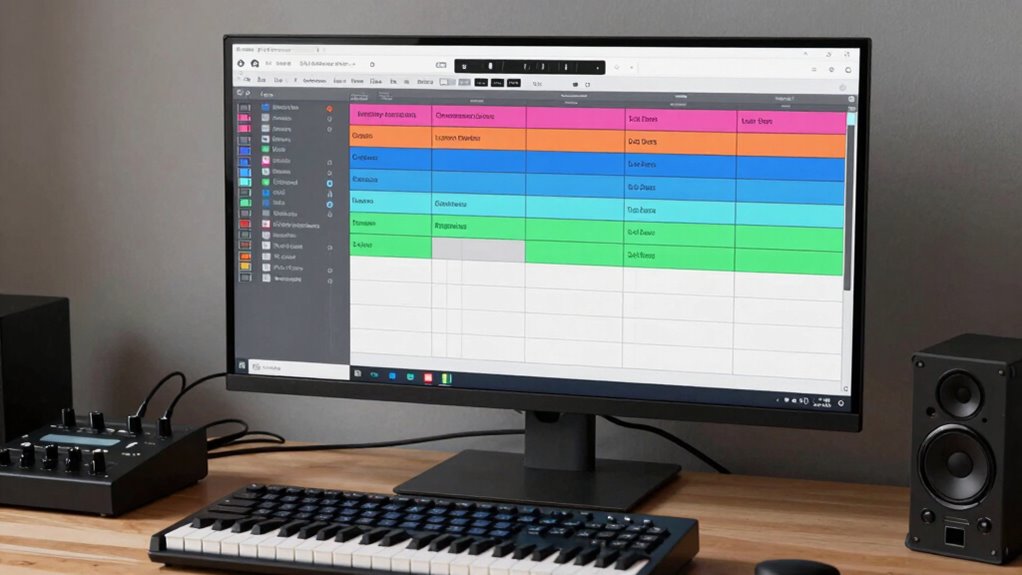

To build a simple template session in your DAW, start by creating basic track setups for vocals, drums, guitars, and bass. Organize tracks by grouping similar instruments and color-code them for quick identification. Load essential plugins like EQ, compression, and reverb with default settings, and route tracks efficiently to groups or buses. Save this configuration as a template, then customize it for each new project to save time and stay organized. Keep exploring to learn more tips for optimizing your templates.
Key Takeaways
- Set up essential tracks (drums, vocals, instruments) and organize them logically.
- Color-code and group similar tracks for quick identification and visual clarity.
- Load and configure basic plugins (EQ, compression, reverb) with default settings.
- Route tracks to subgroup and auxiliary channels for efficient processing.
- Save the session as a template with a descriptive name for easy reuse and refinement.
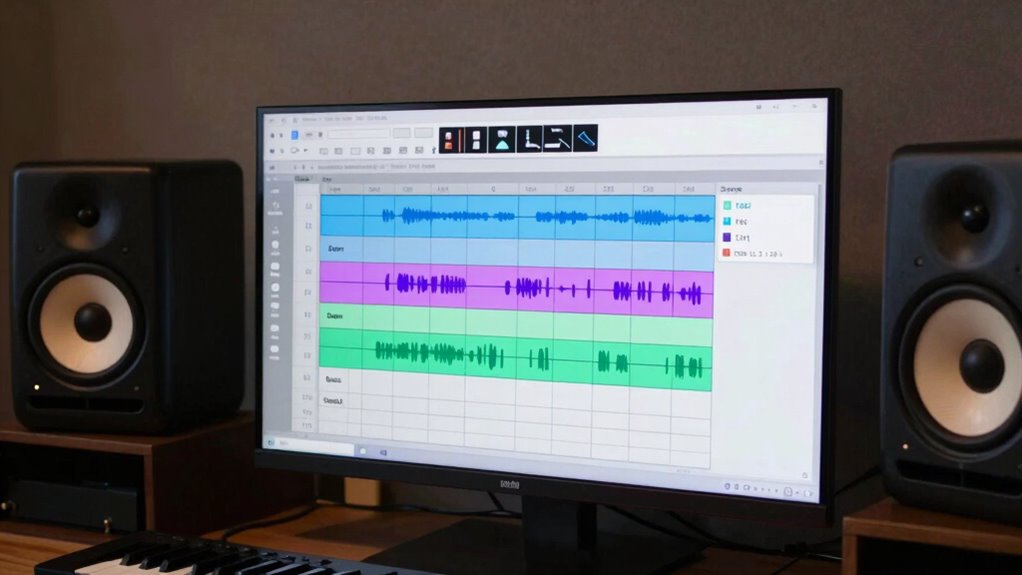
Have you ever wondered how to streamline your music production process from the start? Building a simple template session in your DAW is a great way to save time and maintain consistency across projects. When you create a template, you’re fundamentally setting up a foundation that includes your preferred routing, instrument tracks, and effects, so you don’t have to start from scratch each time. To do this effectively, you should focus on incorporating vital mixing techniques into your template, ensuring that your tracks are balanced and ready for fine-tuning later on. Start by organizing your tracks logically—group similar instruments, like drums or vocals, and color-code them for quick identification. This not only speeds up your workflow but also helps you visualize your session better.
Creating a well-organized template with routing and color-coding streamlines your music production workflow.
Managing plugins efficiently is pivotal when building a template. Select your go-to plugins for EQ, compression, reverb, and other effects, and set their default parameters to your preferences. This way, every time you open a new session, your favorite tools are pre-loaded, and you can focus on the creative aspects rather than wasting time adjusting settings. Remember to keep plugin management simple; avoid cluttering your template with too many effects or unnecessary plugins, which can slow down your system or lead to confusion during mixing. Instead, include only the indispensable plugins that contribute to your typical sound, and leave space for custom adjustments as needed.
A key part of making your template useful is setting up your routing and busing early on. For example, create subgroup tracks for drums, vocals, and instruments, and route individual tracks accordingly. This allows you to apply processing to entire groups rather than individual tracks, which is a fundamental mixing technique. Additionally, setting up auxiliary tracks for reverb and delay helps you quickly add spatial effects without having to recreate them each time. When organizing your session this way, you’re practicing good mixing techniques that will make the mixing stage faster and more cohesive. Moreover, considering the contrast ratio of your plugin settings can help you achieve more dynamic and visually appealing results, especially in effects like reverb and compression.
Finally, save your template with a descriptive name that clearly indicates its purpose, like “My Production Template.” Each time you start a new project, open this template and customize it as needed, rather than building from scratch. Over time, you’ll refine your setup, adding or removing tracks and plugins based on your workflow evolution. Building a simple template session is an investment that pays off by making your production process more efficient, giving you more time to focus on the creative side of music-making.
As an affiliate, we earn on qualifying purchases.
Frequently Asked Questions
Can I Customize Templates for Different Genres?
Yes, you can customize templates for different genres. Start by creating genre-specific presets tailored to your style, then personalize your template session accordingly. Save these as templates, so you can quickly load them for future projects. This template customization makes your workflow faster and ensures consistency across your tracks, letting you focus on creativity rather than setup every time you switch genres.
How Do I Save Templates Across Multiple Projects?
To save templates across multiple projects, you should focus on session organization and template sharing. First, create a well-structured template in your DAW, then save it as a dedicated file in a shared folder. When starting new projects, load this template to guarantee consistency. This approach makes it easy to reuse your setup, maintain organization, and share templates with collaborators seamlessly.
Are Templates Compatible With All DAW Software?
Templates aren’t compatible with all DAW software, but many support template sharing and exporting. You should check your DAW’s plugin compatibility to make certain your saved template works smoothly across projects. Some DAWs have specific file formats or built-in template options, so always verify if your plugins and settings will transfer correctly. This way, you can streamline your workflow without worrying about losing plugin configurations or template compatibility.
How Often Should I Update My Template Session?
Think of your template as a garden; it needs regular tending. You should update your session presets and template organization every few months or whenever your workflow changes. Fresh ideas, new plugins, or evolving project needs call for a refresh. Keeping your template current guarantees it stays efficient and inspiring, like a well-tended garden that blooms with your latest creative growth. Regular updates keep your session a thriving workspace.
Can I Include Automation Presets in My Template?
Yes, you can include automation presets in your template. Incorporate automation presets into your template customization to save time on repetitive adjustments. By doing this, you guarantee your session starts with the desired automation settings already in place, streamlining your workflow. Just save the automation presets and load them into your template, so every new session maintains consistency and efficiency from the start.
As an affiliate, we earn on qualifying purchases.
Conclusion
Now that you know how to build a simple template session in your DAW, you’re equipped to transform your workflow instantly. With just a few clicks, you can set up a powerhouse of efficiency that makes every project feel like a breeze—almost like having a secret weapon. Keep experimenting with your templates, and you’ll soon find that your creative process becomes smoother and more inspiring than you ever thought possible. Your music production journey just got a whole lot easier!
As an affiliate, we earn on qualifying purchases.
As an affiliate, we earn on qualifying purchases.